
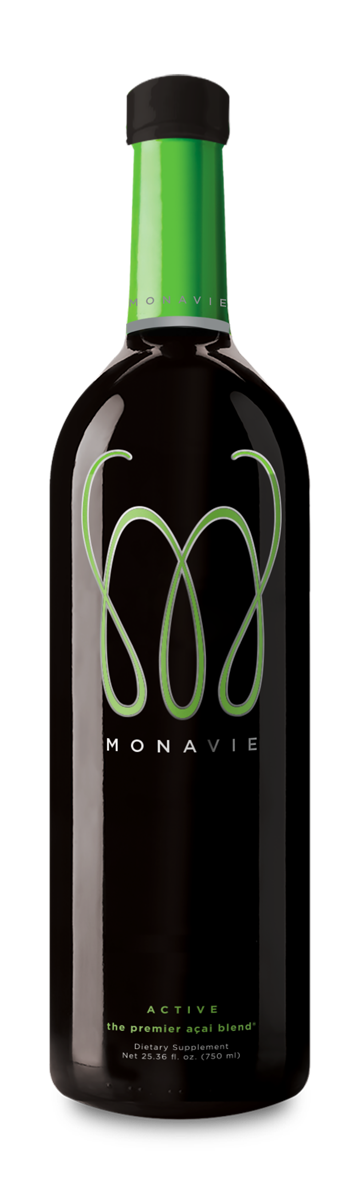


LIVE IN MOTION
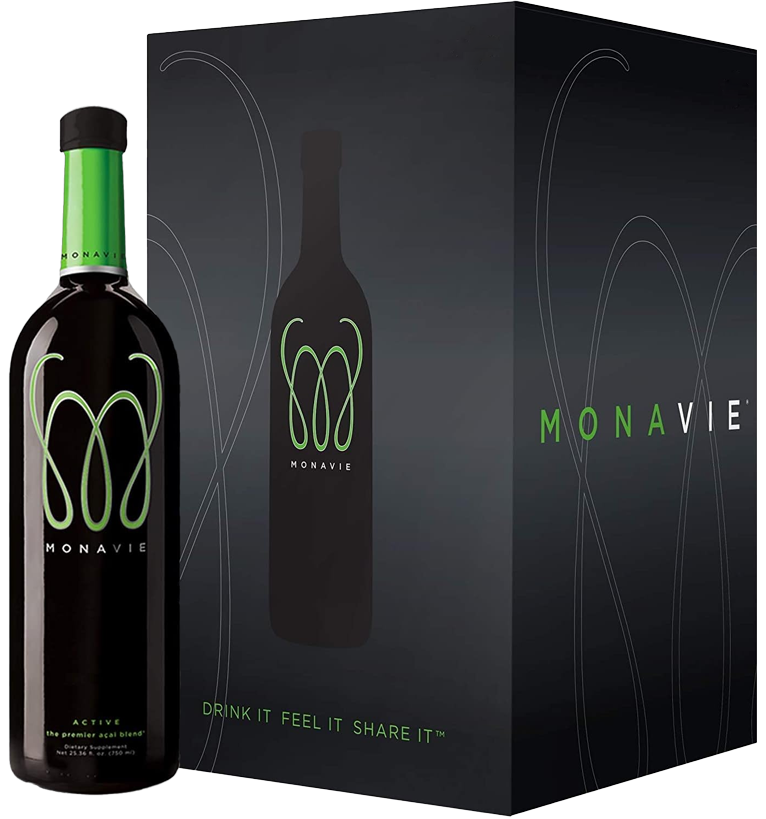
Monavie Active - 1 Case / 4 Bottles
$130.00 USD or Save 10% with Subscribe and Save
It’s time to get moving! MonaVie Active is an innovative blend of 19 fruits, including the Brazilian açaí berry.
Product Use By Date: 08/27
Learn More >
Monavie Active - 2 CaseS / 8 Bottles
$250.00 USD or Save 10% with Subscribe and Save
It’s time to get moving! MonaVie Active is an innovative blend of 19 fruits, including the Brazilian açaí berry.
Product Use By Date: 08/27
Learn More >
Monavie Active - 3 Case / 12 Bottles
$360.00 USD or Save 10% with Subscribe and Save
It’s time to get moving! MonaVie Active is an innovative blend of 19 fruits, including the Brazilian açaí berry.
Product Use By Date: 08/27
Learn More >
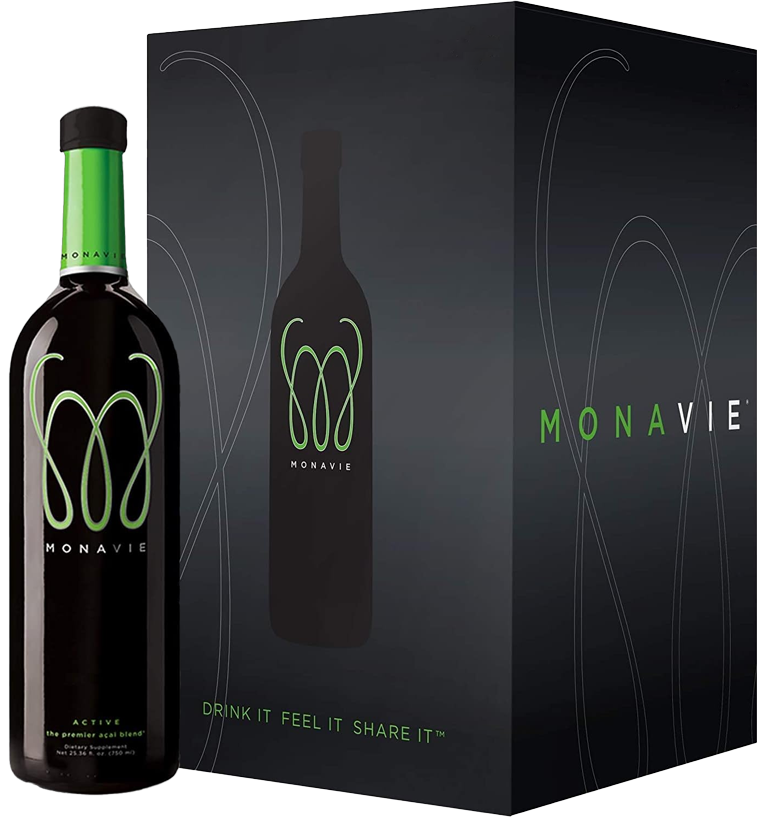
Monavie Active - 4 Cases / 16 Bottles
$460.00 USD or Save 10% with Subscribe and Save
It’s time to get moving! MonaVie Active is an innovative blend of 19 fruits, including the Brazilian açaí berry.
Product Use By Date: 08/27
Learn More >
Monavie Active - 6 Case / 24 Bottles
$660.00 USD or Save 10% with Subscribe and Save
It’s time to get moving! MonaVie Active is an innovative blend of 19 fruits, including the Brazilian açaí berry.
Product Use By Date: 08/27
Learn More >
Monavie Active - 12 CASES / 48 Bottles
$1260.00 USD or Save 10% with Subscribe and Save
It’s time to get moving! MonaVie Active is an innovative blend of 19 fruits, including the Brazilian açaí berry.
Product Use By Date: 08/27
Learn More >
Monavie Active - 24 CASES / 96 Bottles
It’s time to get moving! MonaVie Active is an innovative blend of 19 fruits, including the Brazilian açaí berry.
For our best volume pricing on 24 cases (96 bottles), call 888-718-1706.
Bulk pricing and availability are available by phone.
Monday – Friday, 10:00 AM – 5:00 PM EST
Product Use By Date: 08/27
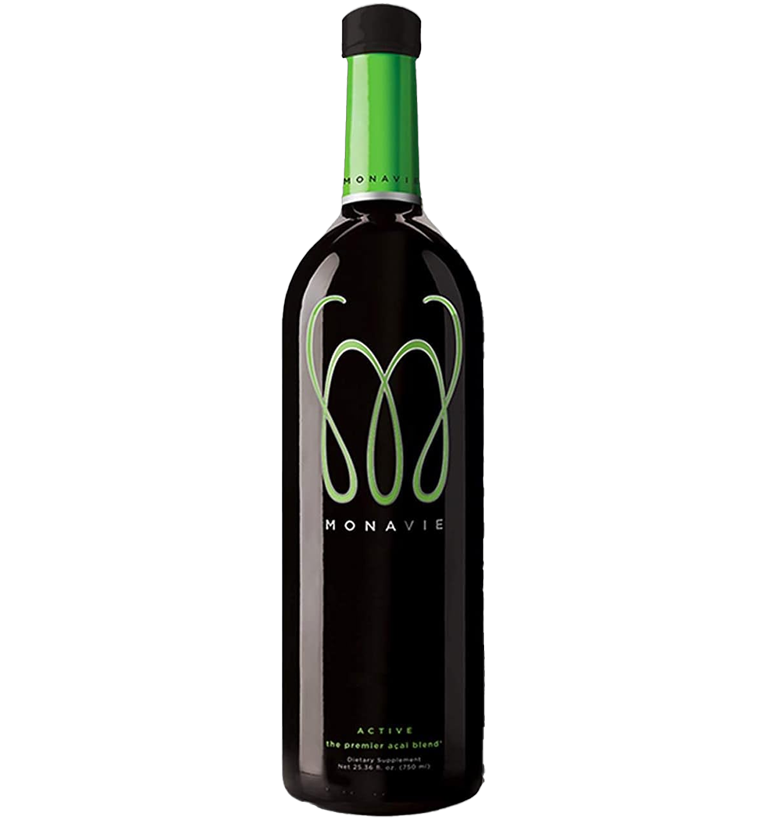
Monavie Active - 1 Bottle / 25.3 oz
$40.00 USD or Save 10% with Subscribe and Save
It’s time to get moving! MonaVie Active is an innovative blend of 19 fruits, including the Brazilian açaí berry.
Product Use By Date: 05/27
Learn More >
Healthy Juice
Sip on the goodness of nature with every drop
Helps support joint mobility and flexibility*
Helps maintain a healthy range of motion*
Offers antioxidant protection against free radicals*
Formulated with premium AçaVie® Complex
No artificial flavor, color or sweeteners
100% Vegan friendly
Plant-based Glucosamine
Plant-based glucosamine is a type of glucosamine supplement derived from non-animal sources, making it suitable for vegetarians and vegans. Glucosamine is a compound naturally found in the body and is a key component of cartilage, which cushions joints and helps maintain their health.
- Monavie Active uses a corn-derived glucosamine that can be extracted from corn through a fermentation process, producing a vegan-friendly form of the supplement.
- Monavie Active contains 750 mg of this plant-based glucosamine per serving(2oz).
- Monavie Active contains no shellfish or animal by-products to source its glucosamine. This ensures that individuals who follow a plant-based diet or have dietary restrictions can still benefit from glucosamine to support joint health*.
It is important to note that the efficacy and absorption of plant-based glucosamine may vary compared to glucosamine derived from shellfish or other animal sources, so consulting with a healthcare provider or nutritionist can help determine the best option for individual health needs.
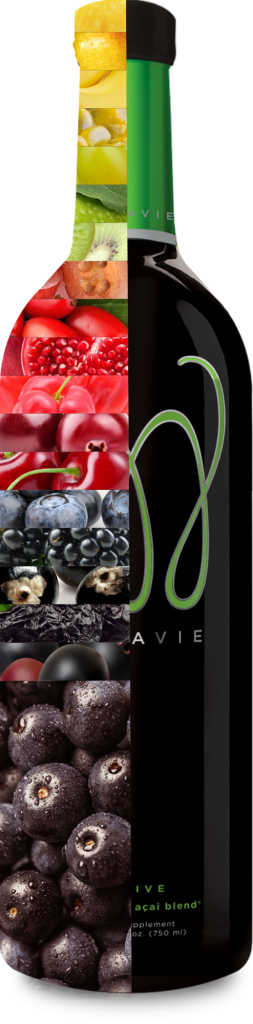
19 BODY BENEFICIAL FRUITS THAT MAKE MONAVIE ACTIVE
Acaiberry
Acerola
Apple
Banana
Bilberry
Blackberry
Blueberry
Cherry
Cranberry
Elderberry
Grape
Kiwi
Passionfruit
Pear
Pineapple
Pomegranate
Prune
White Grape
Wolfberry
DAILY VALUE PER 2 oz SERVING IN MONAVIE
- Vitamin A RAE 150 mcg 6.6%
- Vitamin E 7.5 mg 13.3%
- Vitamin B6 0.5 mg 5%
- Pantothenic Acid 2.5 mg 25%
- Glucosamine Hydrochloride 750 mg 70%
- Vitamin C 15 mg
- Niacin 5 mg 20%
- Vitamin B12 1.5 mcg 70%
- Sodium 5 mg 50%
- AçaVie Complex 9.4 g 94%


AçaVieᵗᵐ Complex
Proprietary blend of açaí puree, pulp and powder.
Pulp: Organic, gluten free and GMA safe
Puree: Quality checked for sweetness and acidity parameters
Powder: Patented Infidri™ light technology dries fruit while leaving the flavor, color and nutritional molecules intact
Drink it. Feel it. Share it.
LIVE IN MOTION
TRACK YOUR ORDER